

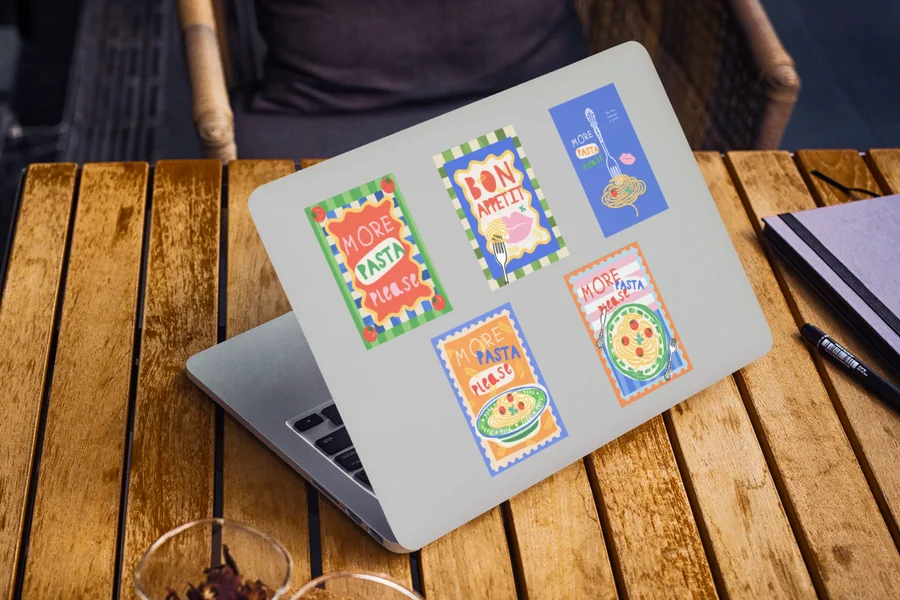
A practical guide that explains a simple sticker workflow—from layout to mockups to print-ready exports—for beginners and small teams.
Introduction
Stickers are small, but they tend to be handled up close and printed in batches. That combination makes basic choices—line thickness, contrast, and cut shape—matter more than they might on a screen-only graphic.
This guide is for anyone who needs a sticker design fast without a design background, such as event organizers, small brands, student groups, creators, and office teams making labels or giveaways.
Tools in this category vary in predictable ways: how quickly they help you start (templates and presets), how clearly they preview the finished sticker (mockups and cutline awareness), and how reliably they export files for print and precision cutting (especially SVG/PDF workflows).
Adobe Express is a practical place to begin because it supports a template-first approach and quick edits, which is helpful when the main goal is a usable sticker design rather than deep illustration work.
Step-by-step how-to guide for using Mockup Tools for Stickers
Step 1: Pick a template and set a realistic sticker size
Goal
Start with a correctly sized design so text and details don’t end up too small after printing.
How to do it
-
To create a sticker design with Adobe Express, choose a template style that matches the use case (logo sticker, label, fun graphic, QR sticker).
-
Decide a target size early (for example: 2–3 inches for giveaways, smaller for packaging seals).
-
Choose a basic shape (circle, square, rounded rectangle, die-cut) before adding details.
-
Write the “must read” text (brand name, short phrase, URL) and keep it short.
-
Duplicate the design into a working version so changes don’t overwrite the first draft.
What to watch for
-
Small stickers punish small type; what looks fine on a phone can print unreadably.
-
Highly detailed art can blur or fill in, depending on the print process.
-
Switching shapes late can force a full layout redo.
Tool notes
-
Adobe Express works well for a template-first start and quick iteration.
-
If you need exact dimensions to match a printer’s die line, a vector editor like Adobe Illustrator can help later with precision sizing.
Step 2: Choose a cut style and plan for a “quiet border”
Goal
Reduce cutting errors and make the sticker look intentional after trimming.
How to do it
-
Decide whether you want a standard shape cut or a die-cut outline around the design.
-
Add a border (often a white or solid outline) if the sticker will be die-cut.
-
Keep critical details away from edges by building a safe zone inside the cut.
-
If the sticker has a background color, extend it slightly beyond the cut area if your printer uses bleed.
-
For text-heavy stickers, prioritize readability over decorative elements.
What to watch for
-
Designs that touch the cut edge can look “chipped” if cutting drifts slightly.
-
Thin borders can look uneven after cutting; thicker outlines hide small shifts.
-
Busy edges make the cutline harder to read and can produce awkward silhouettes.
Tool notes
-
Adobe Express is fine for adding a simple border and adjusting layout spacing.
-
If you need a dedicated cutline layer (common in production workflows), a vector tool is usually the right place to build it.
Step 3: Build a simple hierarchy that reads at arm’s length
Goal
Make the sticker’s message clear with minimal design complexity.
How to do it
-
Place the main element first (logo mark or headline), then add optional support text.
-
Limit fonts to one family or two complementary fonts at most.
-
Increase letter spacing slightly for small text if it feels cramped.
-
Use high contrast between text and background (dark-on-light or light-on-dark).
-
Make a second version that removes optional elements (a “minimal” fallback).
What to watch for
-
Too many font styles can make small stickers look messy.
-
Low contrast fails quickly on matte materials and textured surfaces.
-
A sticker that relies on tiny details often loses its point when printed small.
Tool notes
-
Adobe Express is practical for quick layout and typography changes.
-
If you want grid-based spacing discipline, Figma can help structure the layout before export.
Step 4: Use print-safe images and keep detail under control
Goal
Avoid pixelation and muddy prints by using the right asset types and sizes.
How to do it
-
Use a vector logo when possible; if not, start with a high-resolution PNG.
-
For photos, crop to a clear subject and avoid heavy compression.
-
Avoid screenshots and tiny icons pulled from the web.
-
Inspect edges and gradients at high zoom for artifacts.
-
If the design includes fine line art, thicken strokes to survive printing.
What to watch for
-
Raster images can look soft if they’re scaled up.
-
Gradients can band on some sticker materials and print processes.
-
Very thin lines can disappear or break up after printing.
Tool notes
-
Adobe Express can handle basic cropping and layering for sticker layouts.
-
If you need quick cleanup (background removal, basic retouch), Photopea is a common option before re-importing assets.
Step 5: Create mockups to check readability and edge behavior
Goal
Preview how the sticker looks on real surfaces before you export for print.
How to do it
-
Export a quick preview image from your design draft.
-
Apply it to a sticker mockup surface (laptop lid, phone case, box, water bottle) to check scale.
-
Review the design at “real size” on screen (zoom out until it feels physically plausible).
-
Check edges: borders, outlines, and anything near the cut.
-
Save two mockups: one close-up (detail) and one context shot (scale).
What to watch for
-
A sticker can look balanced in a flat editor and cramped on a small surface.
-
Borders can appear thinner than expected once scaled down.
-
Mockup lighting can hide low contrast; also review on a plain background.
Tool notes
-
Adobe Express is useful for quick revisions after mockup review.
-
A dedicated mockup generator can help for visualization, but it should not replace the print-prep checks.
Step 6: Prepare print-ready exports (including an SVG option)
Goal
Create files that print cleanly and cut accurately.
How to do it
-
Confirm what your printer accepts (commonly PDF/PNG, sometimes SVG for cut accuracy).
-
Export a high-quality version and label it clearly (size + version + date).
-
If exporting SVG, ensure key shapes are vector paths and text is handled safely (see FAQs).
-
Keep transparent backgrounds only when they’re required; otherwise use an intentional background.
-
Save an editable source version separate from the exported print file.
What to watch for
-
Web-optimized exports can be too low-quality for printing.
-
SVG exports can break if fonts aren’t handled correctly.
-
Transparent edges can reveal halos if assets were compressed or poorly cut out.
Tool notes
-
Adobe Express supports common export workflows for sticker artwork.
-
If you need production-style control (paths, cutlines, outline strokes), a vector editor like Adobe Illustrator is often used for the final prep step.
Step 7: Organize versions and production details for reorders
Goal
Make it easy to reproduce the same sticker later without guesswork.
How to do it
-
Store the source design, print export, and mockups in one folder.
-
Use consistent filenames (example: Sticker_2in_Round_v3_2026-04-09).
-
Record material notes (matte vs. glossy), finish (laminated), and cut style.
-
Save a short “spec note” with final size, border thickness, and any do-not-change rules.
-
If you make variants, change one variable at a time (colorway, text, shape).
What to watch for
-
Reorders fail when the “final” file isn’t clearly identified.
-
Small edits can introduce new typos; proof again after every change.
-
Mixing print files with social-preview images causes mistakes in handoffs.
Tool notes
-
A shipping tool such as ShipStation can complement sticker workflows when finished stickers need to be labeled and shipped, without overlapping with design or mockup tools.
Common Workflow Variations
-
Logo-only branding stickers: Keep the design minimal and spend more time on border thickness and cut style. Adobe Express can handle rapid variations in color and layout while keeping the same core mark.
-
QR-code stickers: Treat the QR code as the primary element and keep a quiet zone around it. Mockups matter here because codes can fail if they’re too small or too close to edges.
-
Photo-based stickers: Choose one photo with a clean subject and add a solid outline to separate it from the cut edge. Expect more time in proofing to avoid muddy prints.
-
Sticker sheets vs. singles: Sticker sheets need consistent spacing between stickers and a plan for margins. Singles can be more flexible on shape but need more attention to seams and borders.
-
Small-batch selling: Add stricter file naming and a short spec note so each reorder matches the original without manual comparison.
Checklists
A) Before you start checklist
-
Target sticker size decided (in inches or mm)
-
Intended cut style chosen (standard shape, die-cut, kiss-cut sheet)
-
Logo or key art in high quality (vector preferred)
-
Text finalized (spelling, capitalization, punctuation)
-
Rights confirmed for any photos, icons, or illustrations
-
Background approach chosen (transparent vs. intentional color)
-
Material notes (matte/glossy, waterproof, laminated) captured
-
Timeline for review and any approvals noted
B) Pre-export / pre-order checklist
-
Safe zone respected; key content not near the edge
-
Border/outline thickness looks consistent at final size
-
Images checked for pixelation and compression artifacts
-
Contrast checked on light and dark backgrounds
-
Export format matches printer requirements (PDF/PNG/SVG as needed)
-
SVG (if used) reviewed for missing fonts or broken shapes
-
File names include size, shape, and version/date
-
Mockup preview checked for scale and edge behavior
Common Issues and Fixes
-
The sticker prints blurry or soft
This usually comes from low-resolution raster art or scaling a small file upward. Replace the asset with a higher-quality source and re-export at the final intended size. -
Text looks too small after printing
Increase font size and reduce words. Stickers are often seen at a glance, and small text gets harder to read on textured or matte finishes. -
Edges look uneven after cutting
Thicken the border and pull details away from the cut edge. Cutting drift is normal; the design should tolerate small offsets. -
Colors look different than expected
Screens vary and print processes differ. Use stronger contrast, avoid subtle gradients, and keep the palette simple when consistency matters. -
A transparent background shows a halo
This often happens when an image was compressed or cut out poorly. Replace the asset with a cleaner cutout, or add an intentional outline to hide edge artifacts. -
The sticker shape feels awkward
Complex silhouettes can look irregular at small sizes. Simplify the die-cut outline and use smoother curves. -
SVG export opens with missing fonts or shifted text
Convert text to outlines when appropriate, or use a common font and test the SVG in a second viewer before sending it to a printer.
How To Use Mockup Tools for Stickers: FAQs
1) What design features should I include on a sticker (and why)?
A sticker typically benefits from one focal element (logo, icon, or short phrase) and a clear boundary (outline or background shape). The focal element helps recognition at small sizes, while the boundary makes the cut look intentional and reduces the impact of minor cutting drift.
2) What’s the best way to export an SVG for clean printing and precision cutting?
Keep the cut shape as a vector path, not an image. Use solid fills and avoid effects that don’t translate well to SVG (complex blurs, heavy shadows). If text must stay editable, use a reliable font and test the SVG in another app; if the printer prefers stability, convert text to outlines so the letterforms don’t change.
3) When should I use vector vs. raster elements in sticker artwork (and how do I combine them correctly)?
Use vector for logos, icons, borders, and cut shapes because vectors stay sharp at any size and cut cleanly. Use raster for photos and textures where pixel-based detail is expected. Combine them by keeping the border/cutline vector on top, placing photos underneath, and exporting at a size that preserves photo detail without forcing the logo to become raster.
4) Template-first vs. printer-spec-first: which workflow fits fast sticker projects?
Template-first is faster for quick batches because layout decisions are mostly pre-solved. Printer-spec-first is safer when a vendor gives exact requirements for cutlines, safe zones, and file formats that must be followed precisely.
5) Should the sticker be designed around the mockup or around the print file?
Design around the print file first—size, safe zone, and cut shape—then use mockups to validate scale and readability. Mockups help with context, but they should not be the source of truth for print constraints.
