

In Windows 11, files sometimes stop working and confuse many users every day. This problem usually happens after crashes or sudden shutdowns. Therefore, people often worry because important documents, photos, or videos become unreadable altogether. Many users search for how to fix corrupted files Windows 11 safely without losing data. So, this guide explains easy methods that help you open damaged files again with ease.
Part 1. Key Reasons Windows 11 Files Fail or Get Damaged
Before learning how to fix corrupted files Windows 11, understand why files break. Below are common causes that damage files and create serious access problems today:
- Disk Failures: Failing drives or bad sectors often damage stored data and break files. Old disks with physical wear create read errors and frequently corrupt saved information.
- Software Bugs: Buggy programs crash and corrupt files when saving data to devices. Broken updates or drivers may create conflicts that corrupt system or user files.
- Malware Attacks: Malicious software can alter data secretly and make normal files unreadable. Some threats replace system parts, which leads to crashes and file damage later.
- System Errors: A damaged file can misplace data blocks and make documents unreadable. Partition damage or formatting faults may cause many files to disappear without warning.
- Power Loss: Sudden shutdowns during saving stop processes and leave files incomplete or broken. Power cuts can interrupt disk writing and cause mismatched file system records later.
Part 2. Try Best Software to Repair Windows 11 Files You Can’t Fix Manually
For those who are looking for how to fix corrupted files Windows 11, Repairit is the effortless solution. This dedicated tool supports recovery of 30+ file formats, including many corrupted file types. You can repair unreadable, damaged files that fail to open due to a sudden shutdown. It also allows users to repair multiple corrupted files simultaneously, saving time.
Users can repair files with missing headers, which prevents proper opening or reading. Plus, it processes corrupted files rapidly, reducing waiting time for urgent recovery needs. The tool supports multiple file formats and versions, including Word 2019 and PDF 1.2. You can also preview repaired files before saving to confirm accuracy and content. Additionally, it detects different corruption types automatically before starting an accurate repair operation.
Key Features
- Large Files: Handles very large archive files over 1GB without failure issues occurring.
- Keeps Structure Intact: Maintains original folder hierarchy when repairing archives to preserve organization perfectly.
- Error Handling: Handles files damaged by crashes, viruses, hardware faults, or power failures.
Step-by-Step Guide to Repair Corrupted or Broken Files Using Repairit
Adhere to the given steps to fix corrupted files using this dedicated tool:
Step 1. Import the Damaged Files
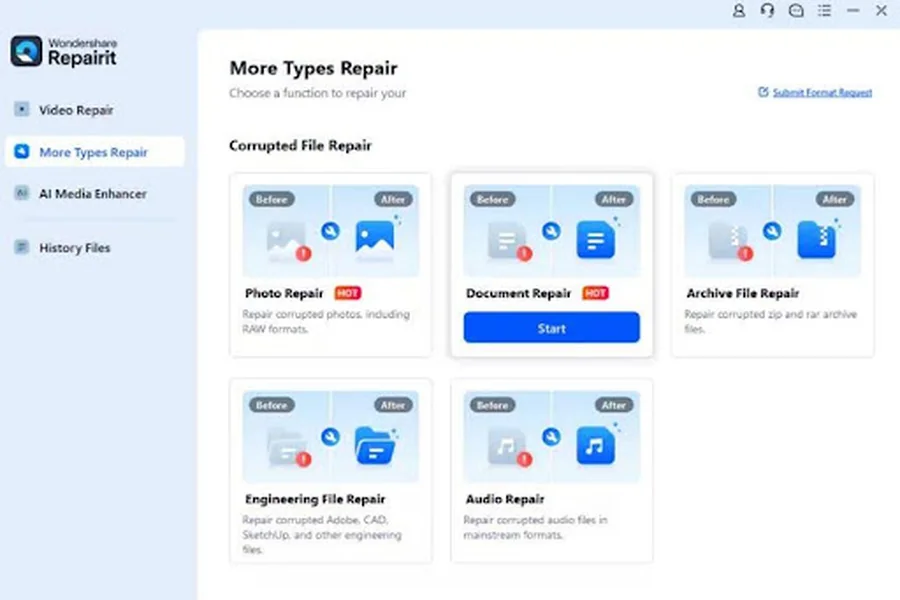
Access the software and go to “More Types Repair,” then select “Document Repair.” Afterward, opt for the “Start” button to import the damaged files.
Step 2. Repair the Added Corrupted Files
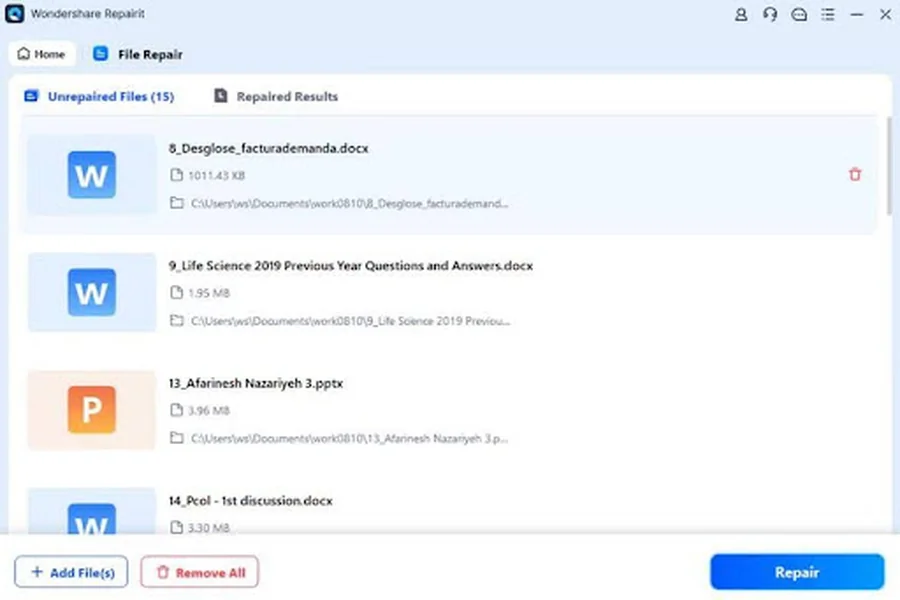
After accessing it, press the “Repair” button to start the repair process.
Step 3. Preview Repaired Files and Download
When the repair process is complete, click “Preview” to check the repaired files. At last, if you’re satisfied with the output, opt for “Save” to download them to your system.
Part 3. 4 Basic Troubleshooting Steps Before Advanced Repair
Many users wonder how to fix corrupted files Windows 11 when files stop opening altogether. This part explains basic troubleshooting steps to try before moving to advanced repair:
1. Restart the PC and Try Opening the File Again
A simple restart can fix temporary problems that stop Windows 11 from opening files. It also clears the RAM and closes all running apps or background processes that lock files. Restarting reloads Windows and drivers in a clean state. This fixes memory leaks, stuck drivers, and unfinished updates that block file access. Thus, adhere to the instructions below to learn how to restart your computer:
Instructions. Click the “Windows” icon and press the “Power” button, then choose “Restart.”
2. Open The File In Alternative Programs
You should try opening the corrupted file in LibreOffice or WPS Office to bypass the original application errors. This method also helps recover usable data when the primary program refuses to open the file. Understanding how to fix corrupted files Windows 11 means using flexible alternative apps. Also, alternative apps can read broken headers, indexes, or metadata safely. They even show usable content even when the original program fails.
3. Check The Drive For Errors Using Windows Tools
This is a built-in tool in Windows 11 that scans the disk and file system for problems. It finds damaged sectors and fixes broken file system structures that stop files from opening. The tool also repairs lost clusters and cross-linked entries, helping Windows track data. This supports how to fix corrupted files Windows 11 and can prevent future file damage. Adhere to the steps to check the drive for errors:
Step 1. Open the “File Explorer” and right-click the drive you want to check, then opt for “Properties.”
Step 2. In the “Properties” window, click the “Tools” tab and under “Error Checking,” opt for “Check.”
4. Avoid Overwriting the Corrupted File
Sometimes, avoiding overwriting the corrupted file protects the original data for safe recovery. New files or edits can replace existing sectors, making repair almost impossible later. Keeping the damaged file untouched helps repair tools scan intact parts and extract usable content. Moreover, this method increases the chance of recovering important information safely and completely. It also keeps the original file intact as a reliable fallback option.
Part 4. Repair Corrupted Files on Windows 11 with Built-In Utilities
Learning how to fix corrupted files Windows 11 is imperative when a file is broken. The following are the Windows 11 built-in utilities that can be used to repair files:
1. Use CHKDSK To Scan and Repair Drive Errors
You should use CHKDSK to scan and repair drive errors, as it checks file system integrity. CHKDSK checks file system structures like indexes and metadata. The process detects logical problems such as lost clusters, wrong file sizes, and cross-linked entries. It also identifies bad sectors, isolating them to prevent further data damage. Hence, review the steps below to fix corrupted files via the CHKDSK command:
Step 1. From the “Start” menu, search for “Command Prompt” and choose “Run as Administrator.”
Step 2. In the Command Prompt, type “chkdsk X: /f” and press “Enter.” You need to replace X: with the drive letter you want to check.
2. Run SFC (System File Checker) For System File Corruption
Running SFC scans and protects Windows 11 system files from corruption or modification. This tool scans all protected system components and drivers, comparing them with clean cached versions. When mismatches are found, SFC automatically replaces damaged files, restoring functionality and stability. Using this tool ensures operation and supports how to fix corrupted files Windows 11. So, go through the given instructions to run the SFC command to fix the problem:
Instructions. Open “Command Prompt” and choose the “Run as Administrator” option. Upon accessing it, type “sfc /scannow” and press the “Enter” key.
3. Use DISM To Repair Windows Image and System Components
Sometimes DISM repairs Windows image files that store original system components. It scans the component store and replaces damaged parts with clean copies. This helps SFC access healthy files and repair system errors correctly. DISM improves stability by restoring essential background system files. It also fixes hidden component damage that can cause crashes or features to stop working. Adhere to the guide to use DISM to repair Windows system components:
Step 1. Open the “Command Prompt” and opt for “Run as Administrator,” then type “DISM /Online /Cleanup-Image /CheckHealth” and press “Enter.” After that, you can run “DISM /Online /Cleanup-Image /ScanHealth” for a deeper scan.
Step 2. At last, enter “DISM /Online /Cleanup-Image /RestoreHealth” and press “Enter.”
4. Restore Previous Versions Via File History
Restoring previous versions through File History replaces corrupted files with earlier versions. This Windows feature stores timed backups of files in folders like essential documents. When corruption affects the current file, older versions usually remain safe on another drive. This method helps how to fix corrupted files Windows 11 by recovering intact content. Thus, let’s explore the given steps to restore the previous version of a file:
Step 1. Open “File Explorer” and right-click the file you want to restore, then opt for “Properties.”
Step 2. Now, open the “Previous Versions” tab to select a version, then click “Restore.”
Conclusion
In conclusion, file corruption in Windows 11 can disrupt work and cause data loss. Yet, understanding the reasons behind broken files and using built-in utilities helps maintain system stability. Also, you may need a reliable tool for major or multiple corrupted files. Therefore, Repairit offers a powerful solution to repair damaged files. With it, you can recover data and completely understand how to fix corrupted files Windows 11.
